What Is the Google Tag Update?
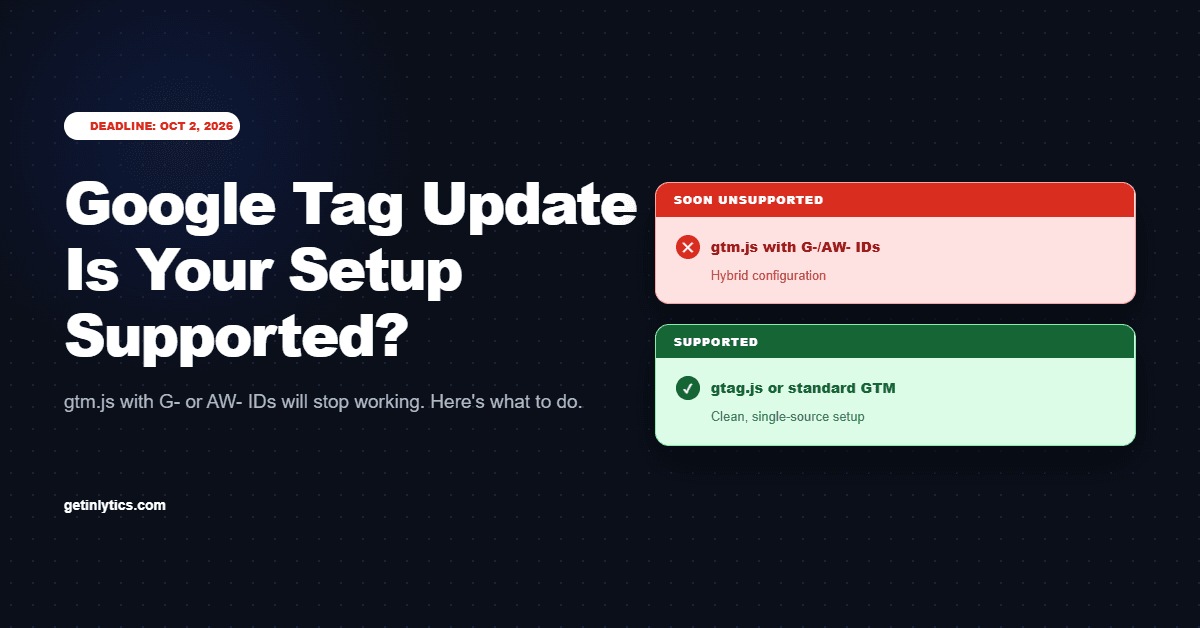
The Google Tag Update is Google's move to standardize how tracking snippets load across all of its advertising and analytics products. The change targets one specific pattern: sites that use Google Tag Manager (via the gtm.js snippet) and also have standalone gtag() calls firing G- or AW- IDs directly on the same page.
This hybrid pattern - GTM container plus inline gtag calls for the same IDs - is what Google is ending support for. The two tagging systems conflict: both try to initialize the same measurement IDs, causing duplicate or dropped events. Google has been tolerating this for years; from October 2, 2026, they will not.
The fix is straightforward: pick one method and use it exclusively. What catches most teams off guard is not knowing they have the hybrid setup at all - it is often created by a CMS plugin, a WordPress theme option, or a marketing team adding a GA4 snippet without knowing that GTM already fires one.
The Three Tag Configurations - Which One Are You?
Before diagnosing your site, understand the three ways Google tracking is typically set up. Two are supported after October 2. One is not.
<!-- GTM snippet loaded -->
<script>
  (function(w,d,s,l,i){...})
  (window,document,'script',
  'dataLayer','GTM-XXXXXXX');
</script>

<!-- ALSO on the same page: -->
<script async
  src="gtag/js?id=G-XXXX">
</script>
<script>
  gtag('config', 'G-XXXX');
  gtag('config', 'AW-XXXXXXXX');
</script><!-- GTM only — all GA4
and Ads tags configured
INSIDE the container -->
<script>
(function(w,d,s,l,i){...})
(window,document,'script',
'dataLayer','GTM-XXXXXXX');
</script>
<!-- No separate gtag.js.
GTM fires everything. -->The three configurations in plain English:
GTM-first (Supported)
You load gtm.js once. GA4, Google Ads, and all other tags fire through the GTM container. No standalone gtag calls exist on your pages.
gtag.js direct (Supported)
You do not use GTM at all. The gtag.js snippet loads your G-XXXX or AW-XXXX IDs directly. Tag configuration happens in GA4 Admin and Google Ads.
Hybrid (Unsupported after Oct 2)
You load gtm.js AND also have standalone gtag() calls firing the same or overlapping IDs. This is the pattern being disabled.
How to Diagnose Your Setup - 4 Methods
Use these four methods from easiest to most thorough. Method 1 tells you immediately if Google has already flagged your account. Method 4 gives you a full picture of your tag health.
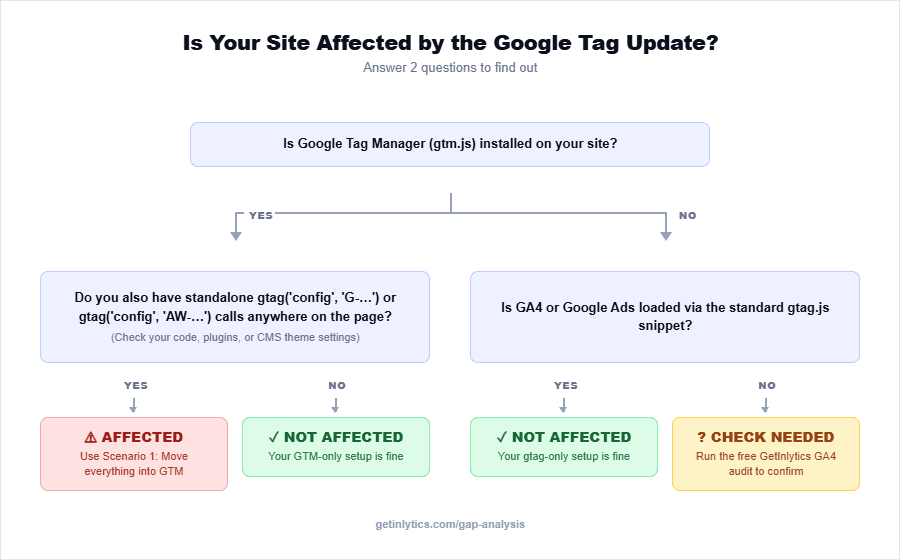
Check your Google Ads or GA4 account email
Google has been sending warning emails to account admins whose properties are linked to affected tag configurations. Subject lines include "Action required" and reference the October 2 deadline. Check the primary inbox of your Google Ads and GA4 admin accounts.
Use Google Tag Assistant
Go to tagassistant.google.com, enter your site URL, and click Start. In the Tag Summary panel, look for a warning labeled "Unsupported configuration" or similar. This is the most direct signal from Google that your site has the hybrid setup.
Inspect your page source or browser network tab
Right-click your site in Chrome, choose View Page Source, and search for both "gtm.js" and "gtag/js". If both appear in the same page, you have the hybrid setup. In DevTools Network, filter by "gtm" and "gtag" to see both loading simultaneously.
Run the free GA4 Gap Analysis
The GetInlytics GA4 Gap Analysis scans your site for GA4 and Google Ads tag configuration issues including hybrid setups, missing conversion events, and tag conflicts. It takes 90 seconds and shows exactly what needs fixing.
Diagnose your setup in 90 seconds
The GA4 Gap Analysis flags hybrid tag setups, missing conversion events, and tracking gaps - free, no sign-up required.
What Breaks If You Do Nothing
There is no visible error on your website. Pages load normally. The damage is silent - it shows up days later as degraded bidding performance, shrinking audience sizes, and conversion reports that no longer match reality.
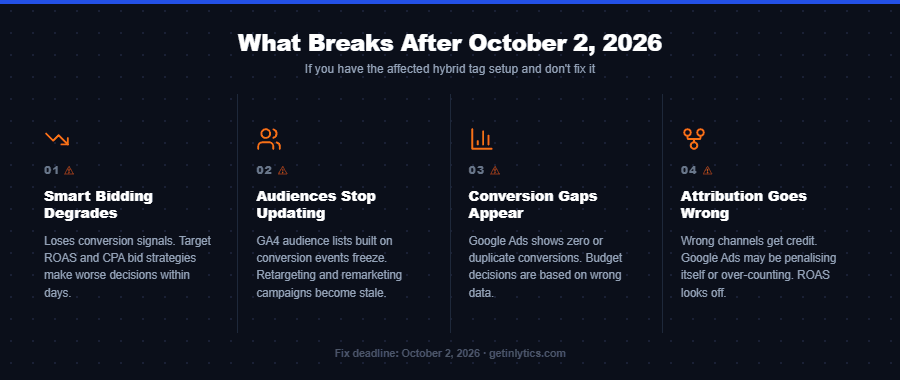
The conversion data gap is the most operationally damaging. Once Smart Bidding loses signal, it can take several weeks of clean conversion data to fully re-train - meaning a fix in late October may not restore campaign performance until November.
If you suspect tracking data has already been affected, the Conversion Leak Detector identifies where conversion events are dropping off your funnel, and the Lead Tracking Audit shows whether form submissions, calls, and lead events are reaching your ad platforms correctly.
Not sure where your tracking stands?
Book a 30-minute call with the GetInlytics team. We will check your tag setup, review your conversion data, and walk you through exactly what needs to change before the deadline.
How to Fix It - Choose Your Scenario
There are two supported architectures after October 2. Choose the one that fits your team's workflow and follow the steps for that scenario only. Do not attempt to use both at the same time.
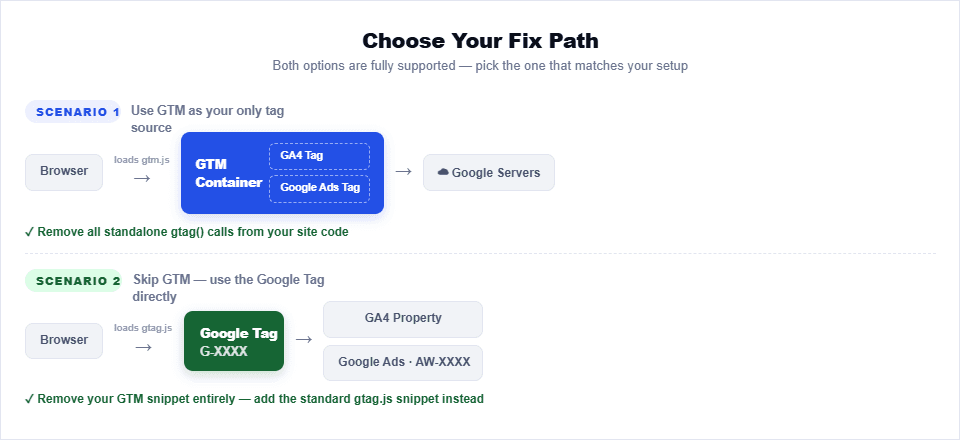
Scenario 1 - Move Everything Into GTM
Choose this if your team uses GTM for other tags, you have a Consent Mode setup, or you need tag version control and rollback. This is the recommended path for most sites.
Add a Google Tag inside GTM
In your GTM workspace, create a new tag. Under Tag Type, select Google Tag. Enter your G-XXXX measurement ID. Set the trigger to All Pages. Repeat for your AW-XXXXXXXX conversion ID if you have one.
Publish the GTM container
Click Submit in the top-right of GTM and publish the container. Test in Preview mode first - use the built-in GTM debugger to confirm the Google Tag fires on every page without errors.
Remove standalone gtag scripts from your site
In your site HTML, CMS theme settings, or plugin configuration, find and remove any script tags loading gtag/js?id=G-XXXX and any inline gtag() calls. Check WordPress plugins like "Site Kit by Google," "GA4 for WordPress," and your theme's Analytics settings - these often inject gtag independently.
Clear your CDN and site cache
If you use Cloudflare, Varnish, or any caching layer, purge the cache after making changes. Cached pages may still serve the old hybrid setup to visitors until the cache clears.
Verify using Tag Assistant
Visit tagassistant.google.com and test your live site. Confirm you see one GTM container loading with no separate gtag.js request and no unsupported configuration warning.
Already in GTM and want to go deeper?
The GetInlytics GTM Cookbook has pre-built recipes for GA4 enhanced ecommerce, scroll tracking, video engagement, and 80+ other event types - copy-ready templates that save hours of GTM configuration time.
Scenario 2 - Switch to gtag.js Only
Choose this if your site has no other tags in GTM, you do not use Consent Mode v2 through GTM, and you prefer managing measurement through GA4 Admin and Google Ads directly.
Get your gtag.js snippet from GA4
In GA4, go to Admin, then Data Streams, then your web stream. Under Tagging Instructions, copy the Global site tag (gtag.js) snippet. It includes your G-XXXX measurement ID.
Add the snippet to every page
Paste the snippet into the <head> section of your HTML template, or use your CMS theme's Header Scripts field. On WordPress, use a plugin like "Head, Footer and Post Injections" or add it to functions.php via wp_head.
Add your Google Ads ID as an additional config
After the first gtag snippet, add a single line: gtag('config', 'AW-XXXXXXXX'); This configures your conversion tracking ID within the same tag.
Remove the GTM container snippet from your site
Delete the gtm.js script from your <head> and the GTM noscript from your <body>. If you used a GTM plugin in your CMS, deactivate and uninstall it.
Reconfigure any conversion actions that were in GTM
If you had conversion events set up as GTM tags, you will need to recreate them. In Google Ads, go to Conversions, then create new conversion actions using the Google tag method. For GA4 events, configure them in GA4 Conversions settings.
After completing either scenario, run the GA4 Gap Analysis again to confirm the hybrid pattern is gone and your measurement IDs are loading cleanly.
How to Verify Your Fix Worked
Do not assume the fix worked because you made the changes. Check it with tools. These four steps give you high confidence before October 2.
Verify your pixels are clean post-fix
The Ad Pixel Checker scans for GA4, Google Ads, Meta Pixel, LinkedIn Insight Tag, and TikTok Pixel - detecting duplicates, misfires, and configuration issues in seconds.
If you want ongoing visibility into your tag health beyond this one-time check, the Vibe Inspector browser extension shows you a live tag audit panel as you browse any page - surfacing conflicts, misfires, and configuration issues in real time without needing to open DevTools.
While You Are Here - Check Your Full Tag Health
The October 2 update is a forcing function - but most sites with a hybrid tag setup also have other tracking issues that predate this deadline. Consent Mode misconfiguration, pixel misfires, and missing conversion events are common co-occurring problems.
Run a full tag health check with Vibe Check
Vibe Check scans for Consent Mode, Core Web Vitals, Google Tag Manager status, pixel accuracy, and 12 other tracking signals. Takes 60 seconds. Free.
Frequently Asked Questions
What is the Google Tag Update happening on October 2, 2026?
The Google Tag Update is a standardization of how tagging snippets behave across Google products. Starting October 2, 2026, Google is removing support for hybrid configurations where a gtm.js container snippet and standalone gtag.js calls using G- or AW- IDs are loaded on the same page. Sites using this hybrid pattern will see their tracking stop functioning correctly.
How do I know if my website is affected by the October 2026 Google Tag change?
You are affected if your site loads a GTM container using the gtm.js snippet AND also has standalone gtag config calls for G- or AW- IDs anywhere in your page code or plugins. Check your Google Ads or GA4 account email for a notification from Google, use Tag Assistant at tagassistant.google.com for an unsupported configuration warning, or run the free GetInlytics GA4 Gap Analysis at getinlytics.com/gap-analysis.
What is the difference between gtm.js and gtag.js?
gtm.js is the Google Tag Manager container loader - it loads your GTM container which then fires individual tags (GA4, Google Ads, etc.) based on rules you set in the GTM interface. gtag.js is the direct Google Tag snippet - it loads a single Google tag using a G- or AW- ID without any container. You should use one or the other, not both simultaneously for the same measurement IDs.
Will my Google Ads stop working if I do not fix this before October 2?
If your site has the affected hybrid setup, your Google Ads conversion tracking will stop functioning correctly after October 2, 2026. Smart Bidding strategies such as Target ROAS and Target CPA will lose their conversion signals, audience lists will stop updating, and your conversion reports in Google Ads will become inaccurate. There is no visible page error - tracking simply stops flowing silently.
What happens if I have both GTM and a gtag snippet on my site?
Having both GTM and standalone gtag calls for the same G- or AW- IDs is the exact configuration Google is marking as unsupported. After October 2, 2026, this setup will stop behaving as expected. You need to either move everything into GTM and remove all standalone gtag calls, or remove GTM entirely and use gtag.js only.
Should I use GTM or gtag.js - which is the supported option after October 2?
Both are supported after October 2 - the key is using only one. GTM via gtm.js with all GA4 and Google Ads tags configured inside the container is recommended for sites with multiple tags or any need for tag management flexibility. gtag.js directly is better for simple sites with one or two Google products and no need for a tag management layer. Never mix both for the same measurement IDs.
How do I move my GA4 tag from gtag.js into Google Tag Manager?
In GTM, create a new tag of type Google Tag, enter your G-XXXX ID, set the trigger to All Pages, and publish the container. Then remove the gtag.js script tag and all standalone gtag config calls from your site HTML and any CMS plugins. Verify using Tag Assistant - you should see only the GTM container firing, with no separate gtag.js request.
How do I verify my Google Tag setup is correct after fixing it?
Go to tagassistant.google.com, enter your site URL, and start debugging. In the tag summary panel, look for any "Unsupported configuration" warning. A clean setup shows only one type of tag loader - either GTM or gtag.js - with no conflicts. Use the free GetInlytics Ad Pixel Checker at getinlytics.com/tools/ad-pixel-checker to verify your GA4 and Google Ads tags are loading correctly after the fix.
Does this Google Tag update affect Google Ads conversion tracking?
Yes. Google Ads conversion tracking using AW- IDs is one of the most commonly affected setups. If your AW- conversion ID is being loaded both via a GTM tag and a standalone gtag config call on the same page, this is a hybrid configuration that will break after October 2, 2026. Consolidate to one method only.
Does this affect WordPress, Shopify, or Wix sites using a GTM plugin?
Yes, these platforms are commonly affected because many site owners install a GTM plugin AND also add tracking codes through a separate analytics or Google Ads plugin, or through theme settings. Check if you have both a GTM plugin inserting the gtm.js snippet and a GA4 or Google Ads plugin inserting gtag.js or inline gtag calls. If both are active for the same IDs, you are likely affected.
Related Guides
Diagnose Your Tag Setup Before October 2
Run a free GA4 Gap Analysis to see if your site has the hybrid configuration - and which fix path to take. No account needed. Results in 90 seconds.